mirror of
https://github.com/jkocon/g-helper.git
synced 2026-02-23 13:00:52 +01:00

222 lines
15 KiB
Markdown
222 lines
15 KiB
Markdown
# G-Helper - Lightweight control tool for Asus laptops
|
|
[](https://u24.gov.ua/)
|
|
[](https://GitHub.com/seerge/g-helper/releases/)
|
|
[](https://GitHub.com/seerge/g-helper/releases/) [](https://GitHub.com/seerge/g-helper/stargazers/) <sup> Language: English | <a href="https://github.com/seerge/g-helper/blob/main/docs/README.zh-CN.md">[中文]</a></sup>
|
|
|
|
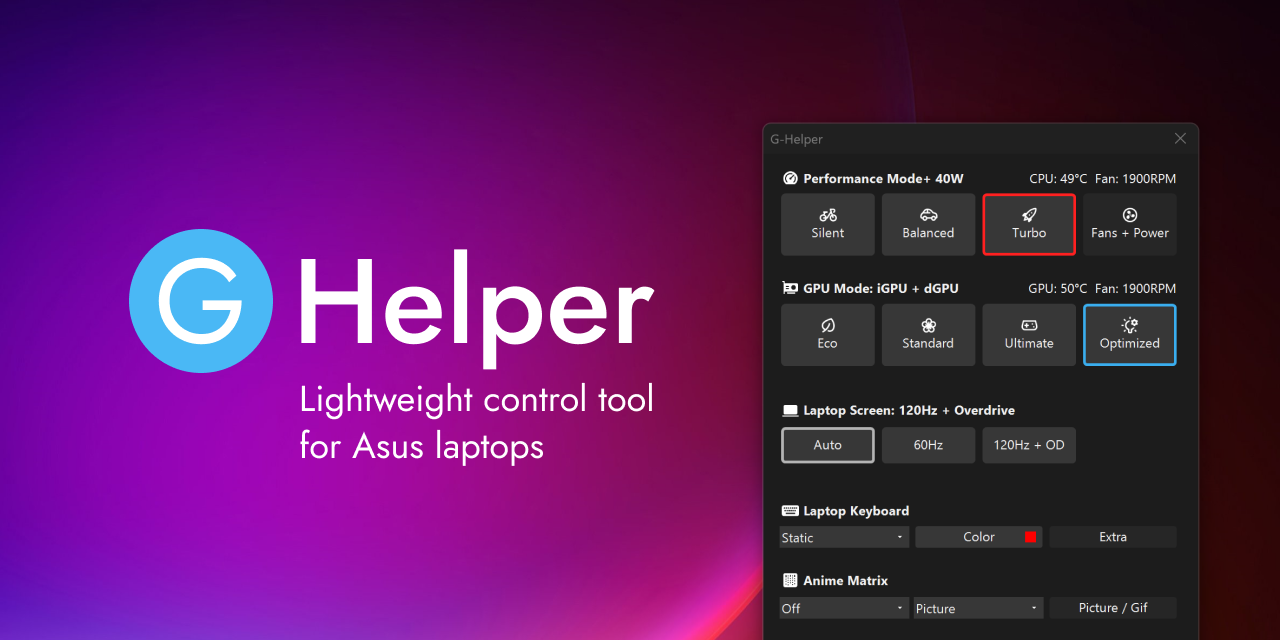
Small and lightweight Armoury Crate alternative for Asus laptops offering almost same functionality without extra bloat and unnecessary services.
|
|
Works on all popular models, such as ROG Zephyrus G14, G15, G16, M16, Flow X13, Flow X16, Flow Z13, TUF Series, Strix / Scar Series, ProArt, VivoBook and many more!
|
|
|
|
# [:floppy_disk: Download](https://github.com/seerge/g-helper/releases/latest/download/GHelper.zip)
|
|
|
|
[**FAQ**](#question-faq) | [**Requirements**](https://github.com/seerge/g-helper/wiki/Requirements) | [**Troubleshooting**](https://github.com/seerge/g-helper/wiki/Troubleshooting) | [**Power User Settings**](https://github.com/seerge/g-helper/wiki/Power-user-settings)
|
|
|
|
#### Support project in [:euro: EUR](https://www.paypal.com/donate/?hosted_button_id=4HMSHS4EBQWTA) or [💵 USD](https://www.paypal.com/donate/?hosted_button_id=SRM6QUX6ACXDY)
|
|
|
|
|
|
|
|
## :gift: Advantages
|
|
|
|
1. Seamless and automatic GPU switching
|
|
2. All performance modes can be fully customized with power limits and fan curves
|
|
3. Lightweight. Doesn't install anything in your system. Just a single exe to run
|
|
4. Simple and clean native UI with easy access to all settings
|
|
5. FN-Lock and custom hotkeys
|
|
|
|

|
|
|
|
### :zap: Features
|
|
|
|
1. Performance modes: Silent - Balanced - Turbo (built-in, with default fan curves)
|
|
2. GPU modes: Eco - Standard - Ultimate - Optimized
|
|
3. Screen refresh rate control with display overdrive (OD)
|
|
4. Custom fan curve editor, power limits and turbo boost selection for every performance mode
|
|
5. Anime matrix control including animated GIFs, clock and Audio visualizer
|
|
6. Backlight animation modes and colors
|
|
7. Custom hotkeys (M-keys, FN+X keys)
|
|
8. Monitor CPU / GPU temperature, fan speeds and battery status
|
|
9. Battery charge limit to preserve battery health
|
|
10. NVidia GPU overclocking
|
|
11. XG Mobile Control
|
|
12. AMD CPU Undervolting
|
|
13. BIOS and Driver Updates
|
|
14. Asus Mice settings
|
|
15. Mini-led multi-zone switch
|
|
|
|
### :gear: Automation
|
|
- Performance Mode switching when on battery or plugged in
|
|
- Optimized GPU mode - disables dGPU on battery and enables when plugged in
|
|
- Auto Screen refresh rate (60Hz on battery and max Hz when plugged)
|
|
- Keyboard backlight timeout on battery or when plugged in
|
|
|
|
_To keep auto switching and hotkeys working the app needs to stay running in the tray. It doesn't consume any resources._
|
|
|
|
### :rocket: Performance Modes
|
|
|
|
<img align="right" width="300" src="https://github.com/seerge/g-helper/assets/5920850/3e119674-db8d-486b-aa65-2bf9b61f9aa6">
|
|
|
|
All Modes are **baked in BIOS** along with default fan curves and power limits and they are the **same** as in the Armoury Crate.
|
|
|
|
Each BIOS mode is paired with matching Windows Power Mode. You can adjust this setting under ``Fans + Power``
|
|
|
|
1. **Silent** in BIOS + **Best power efficiency** power mode
|
|
2. **Balanced** (Performance in AC) in BIOS + **Balanced** power mode
|
|
3. **Turbo** in BIOS + **Best performance** power mode
|
|
|
|
|
|
### :video_game: GPU Modes
|
|
|
|
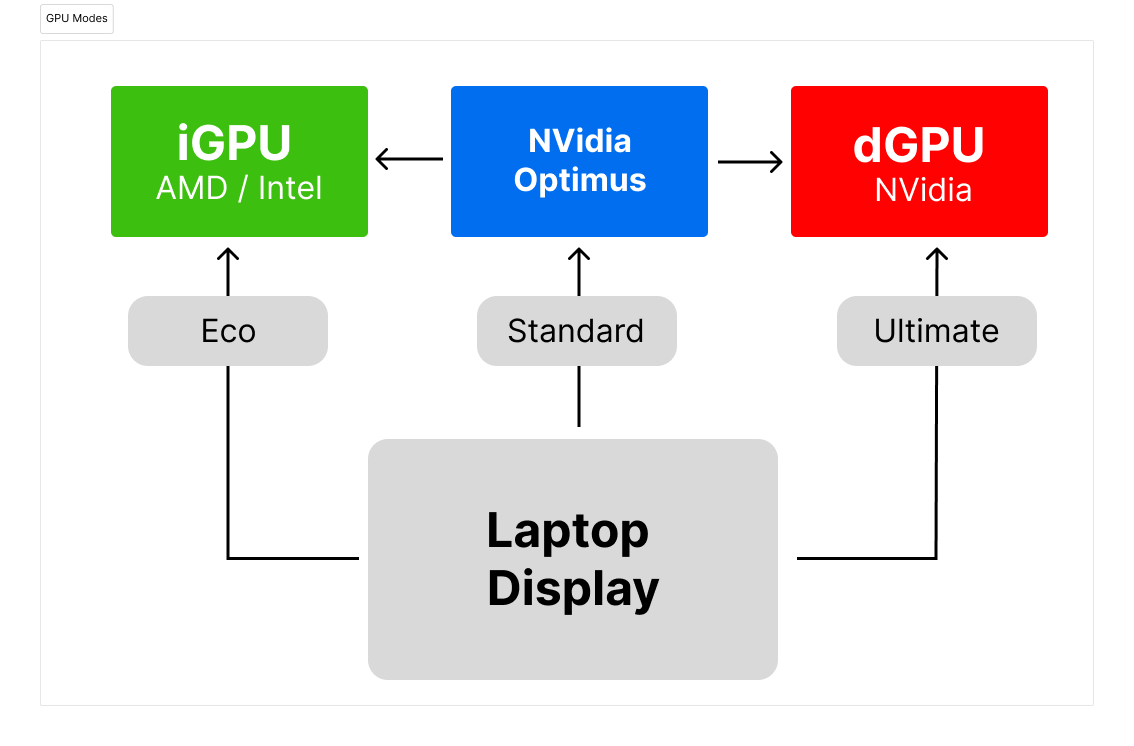
1. **Eco** : only low power integrated GPU enabled, iGPU drives built in display
|
|
2. **Standard** (MS Hybrid) : iGPU and dGPU enabled, iGPU drives built in display
|
|
3. **Ultimate**: iGPU and dGPU enabled, but dGPU drives built in display (supported on 2022+ models)
|
|
4. **Optimized**: disables dGPU on battery (Eco) and enables when plugged in (Standard)
|
|
|
|

|
|
|
|
|
|
|
|
### :mouse: Asus Mouse and other peripherals support
|
|
|
|
[Currently supported models](https://github.com/seerge/g-helper/discussions/900)
|
|
- ROG Harpe Ace Aim Lab Edition
|
|
- ROG Keris Wireless
|
|
- ROG Chakram X (P708)
|
|
- ROG Chakram Core (P511)
|
|
- ROG Strix III Gladius III Aimpoint Wireless (P711)
|
|
- ROG Gladius III
|
|
- ROG Gladius III Wireless
|
|
- ROG Strix Impact II Wireless
|
|
- TUF Gaming M4 Wireless (P306)
|
|
- TUF Gaming M3
|
|
|
|
Huge thanks to [@IceStormNG](https://github.com/IceStormNG) 👑 for contribution and research (!).
|
|
|
|
## :question: FAQ
|
|
|
|
#### How do I stop the Armoury Crate install popup appearing every time I press the M4 / Rog key?
|
|
Stop ``ArmouryCrateControlInterface`` service under windows Services app or you can stop all asus services from ``Extra`` -> ``Stop services``
|
|
|
|
#### Battery charge limiter is not working
|
|
It could be that Asus services are overwriting this limit after. You may want to stop them by clicking "Stop" in the Asus Services section (under Extra).
|
|
Please note: For some devices not every charge limit % may be working. Some models support only 80% limit, so try to set standard **80%** to be sure.
|
|
|
|
#### I don't see GPU modes section
|
|
Some older models (for example G14 2020) don't support disabling GPU on hardware level, therefore GPU section makes no sense for them and will be hidden
|
|
|
|
#### Why is Ultimate GPU mode not available on my laptop?
|
|
Ultimate mode is supported (by hardware) only on 2022+ models
|
|
|
|
#### Should I apply custom power limits (PPT) and fan curves?
|
|
You don't have to, it's purely optional. From my experience built in (in BIOS) performance modes work well. Limit your power or apply custom fan curves only if you have issues. As soon as you click Apply in the ``Fans + Power`` section BIOS will consider your fan curve as "custom"! (no matter if you modified it or not)
|
|
|
|
#### How does G-helper control my fan speeds?
|
|
**It doesn't.** Your firmware / BIOS controls them in real-time. Armoury also doesn't control fans in real time anyhow.
|
|
|
|
What G-helper can do - is (optionally) set a custom fan profile to the current performance mode consisting of 8 pairs of temperature + fan speed % via the same endpoint Armoury seems to use. How it will be interpreted - is still up to the firmware.
|
|
|
|
#### How do I change fan % to fan RPM?
|
|
Click on them
|
|
|
|
#### When I try to apply a custom fan curve I get "BIOS rejected fan curve"
|
|
TUF models from 2021 and older don't support custom fan curves at all. Most probably you didn't have them in the Armoury as well?
|
|
|
|
#### I don't see a GPU temperature in G-helper
|
|
Most probably either you are using Eco / Optimized mode and your dGPU is simply off, or your windows has put the dGPU into sleep to preserve power.
|
|
|
|
#### I don't see app after starting it
|
|
Please check the system tray for a ``(G)`` icon. By default Windows is keen to hide all icons, so you may need to click ``^`` to see them all. I would advise to right click on Taskbar select TaskBar Settings -> Other System Tray icons -> Mark G-Helper to be always ON.
|
|
|
|
#### App crashes or doesn't work properly
|
|
Open "Event Viewer" from the start menu, go to Windows Logs -> Application and check for recent Errors mentioning G-Helper. If you see one - please post a [new issue](https://github.com/seerge/g-helper/issues) with all details from this error.
|
|
|
|
#### Can I use the MyASUS app along with G-Helper?
|
|
You can, the only problem is that MyASUS may override the battery charge limit that you set before. My advice in such a situation would be to set the same limit (i.e. 80%) in both MyASUS and G-Helper.
|
|
|
|
#### How do I set Mute Microphone to M3?
|
|
If you have the Asus Optimization Service running, it's controlled by that service (therefore G-helper doesn't interfere and doesn't touch this function). Alternatively you can stop that service - and you can bind M3 to anything you want.
|
|
|
|
#### How do I set different "Visual styles"?
|
|
Personally, I'm not a big fan of them, as they make colors very inaccurate. But if you want so - you can adjust display colors using either Nvidia Control panel or AMD Adrenaline (appropriate display sections). If you really want you can also use [own ASUS utility from MS Store](https://apps.microsoft.com/store/detail/gamevisual/9P4K1LFTXSH8?hl=nl-nl&gl=nl&rtc=1)
|
|
|
|
#### Can I overclock Nvidia GPU core / memory?
|
|
Make sure that your dGPU is enabled (i.e. it's not in Eco mode). Open Fans + Power section and adjust core / memory clock offsets. They work the same as in armoury's manual mode. Please keep in mind that (unfortunately) you need admin permissions for that, and the app will ask you for them. (*)
|
|
|
|
#### How to Undervolt GPU
|
|
Due to the way the Core Clock offset works for the GPU. When you increase clock offset you undervolt it at the same time (see picture)
|
|
1. Increase ``Core Clock Offset`` under ``Fans + Power -> GPU`` until your 3dmark / furmark / game runs stable. Start with +100, +150, +200 ... This should make your **scores / fps better within same power** / heat as before.
|
|
2. Set ``Core Clock Limit`` to a certain value (it really depends on application / game that you use) **to lower your power** / heat consumption
|
|
|
|

|
|
|
|
#### Windows Defender marks app as malware / virus
|
|
False positives from Windows Defender (or any other similar system that uses machine learning for detection) is possible as the application is not digitally signed with a certificate. You can always download a version below or compile the app by yourself. All application sources are open and can be monitored from A to Z :)
|
|
|
|
#### Where can I find app settings or logs ?
|
|
You can find them under the ``%AppData%\GHelper`` folder. Please include them when posting a new bug-report or issue.
|
|
|
|
#### App refuses to run on startup or runs without any icon in tray on startup
|
|
Open the app, and uncheck and check again "run on startup". If it still doesn't help (for some reason), you can try to manually edit the "GHelper" task in Windows Task Scheduler, and add a couple of seconds delay to start.
|
|
|
|
#### How do I uninstall G-helper?
|
|
G-helper is a single exe, and it doesn't install anything in the system. To remove it - you can simply delete exe :) If you have applied any custom fan profiles or PPTs - before removing I would recommend selecting your
|
|
favorite performance mode (for example balanced) and clicking "Factory defaults" under Fans + Power.
|
|
|
|
#### Can I undervolt my CPU ?
|
|
Currently you can undervolt AMD CPUs. If your model supports that - you will see an undervolting slider under ``Fans+Power -> Advanced``. If you don't see a slider there, it means your CPU doesn't support undervolting. Full list of models that support that [can be found here](https://github.com/seerge/g-helper/discussions/736)
|
|
|
|
#### I have G14 2023 and my GPU refuses to disable/enable
|
|
It seems to be an issue in older BIOS versions. As [users report](https://github.com/seerge/g-helper/issues/680) - latest BIOS 312 (installable via MyASUS or G-Helper -> Updates) resolves all issues :) So please update.
|
|
|
|
#### I have G15 2022 and my GPU refuses to disable/enable or my fans misbehave
|
|
G15 2022 is known to have a notoriously bugged BIOS (last one 313). Multiple users have reported that problems can be solved by rolling back to a [previous BIOS 311 from Asus Support website](https://rog.asus.com/nl/laptops/rog-zephyrus/rog-zephyrus-g15-2022-series/helpdesk_bios/).
|
|
|
|
#### I have uninstalled Armoury and my GPU performance is lower than it was
|
|
Check your NVidia Experience settings and make sure that you have **Whisper Mode** set to ``OFF``. Also you can go to reset all settings ``Nvidia Control panel -> Manage 3D Settings -> Reset to defaults``
|
|
|
|
#### How do I do a hardware reset on a laptop?
|
|
All Asus laptops have an option to do a hardware reset that can be handy sometimes. It doesn't touch your data, but resets all main hardware-related things (enables your dGPU, wakes up wifi/bt adapter if it hangs for some reason, etc.).
|
|
Turn OFF laptop. Press and hold the "power" button for 30-40 seconds. Then boot normally (it will take a bit longer to boot)
|
|
|
|
#### What is G-helper ?
|
|
Small and lightweight Armoury Crate alternative for Asus laptops offering almost same functionality without extra bloat and unnecessary services. Works on ROG G14, G15, G16, M16, X13, Z13, X16, TUF, Scar, Vivobook, ProArt and all other popular models.
|
|
|
|
---------
|
|
|
|
### How to Start
|
|
|
|
1. Download [**latest release**](https://github.com/seerge/g-helper/releases/latest/download/GHelper.zip)
|
|
2. Unzip to a folder of your choice _(don't run exe from zip directly, as windows will put it into temp folder and delete after)_
|
|
3. Run **GHelper.exe**
|
|
|
|
### Requirements (mandatory)
|
|
|
|
- [Microsoft .NET 7](https://dotnet.microsoft.com/en-us/download/dotnet/7.0)
|
|
- [Asus System Control Interface](https://dlcdnets.asus.com/pub/ASUS/nb/Image/CustomComponent/ASUSSystemControlInterfaceV3/ASUSSystemControlInterfaceV3.exe)
|
|
|
|
### Recommendations (optional)
|
|
|
|
- It's **not recommended** to use the app in combination with Armoury Crate services, because they adjust the same settings. You can [uninstall it using AC own uninstall tool](https://dlcdnets.asus.com/pub/ASUS/mb/14Utilities/Armoury_Crate_Uninstall_Tool.zip?model=armoury%20crate). Just in case, you can always install it back later.
|
|
|
|
- It's **not recommended** to have "ASUS Smart Display Control" app running, as it will try to change refresh rates and fight with g-helper for the same function. You can safely uninstall it.
|
|
|
|
- You can stop / disable unnecessary services: Go to **Extra** in the app, and press "Stop" in Asus Services section (former **[debloat.bat](https://raw.githubusercontent.com/seerge/g-helper/main/debloat.bat)**). To start / enable services back - click "Start" instead (former **[bloat.bat](https://raw.githubusercontent.com/seerge/g-helper/main/bloat.bat)**)
|
|
|
|
- It is **strongly recommended** to run app with windows default "balanced" power plan
|
|

|
|
|
|
|
|
------------------
|
|
I don't have a Microsoft certificate to sign the app yet, so if you get a warning from Windows Defender on launch (Windows Protected your PC), click More Info -> Run anyway.
|
|
|
|
------------------
|
|
|
|
**Libraries and projects used**
|
|
- [Linux Kernel](https://github.com/torvalds/linux/blob/master/drivers/platform/x86/asus-wmi.c) for some basic endpoints in ASUS ACPI/WMI interface
|
|
- [NvAPIWrapper](https://github.com/falahati/NvAPIWrapper) for accessing Nvidia API
|
|
- [Starlight](https://github.com/vddCore/Starlight) for anime matrix communication protocol
|
|
- [UXTU](https://github.com/JamesCJ60/Universal-x86-Tuning-Utility) for undervolting using Ryzen System Management Unit
|
|
|
|
**Disclaimers**
|
|
"ROG", "TUF", and "Armoury Crate" are trademarked by and belong to AsusTek Computer, Inc. I make no claims to these or any assets belonging to AsusTek Computer and use them purely for informational purposes only.
|
|
|
|
THE SOFTWARE IS PROVIDED “AS IS” AND WITHOUT WARRANTY OF ANY KIND, EXPRESS OR IMPLIED, INCLUDING BUT NOT LIMITED TO THE WARRANTIES OF MERCHANTABILITY, FITNESS FOR A PARTICULAR PURPOSE AND NONINFRINGEMENT. MISUSE OF THIS SOFTWARE COULD CAUSE SYSTEM INSTABILITY OR MALFUNCTION.
|